

Looking to bring something fresh and competitive to your next team event? Here’s a fun way to run Slido alongside a presentation to create an interactive Jeopardy-style game.
This post walks you step by step through building the ultimate trivia showdown using Slido for Google Slides or Slido for PowerPoint.
The challenge
Standard multiple-choice trivia is great, but it’s predictable. For our team holiday party we wanted something more dynamic – a game where there was no way to be the best guesser.
That’s when the idea clicked: recreate a Jeopardy-style format using Slido open text polls and our Google Slides or PowerPoint integration.
The game
If you’re totally unfamiliar with the concept of Jeopardy but you’ve stumbled across this blog and you’re interested to try it out, here’s a summary of how the game works:
- Selection: A contestant selects a category and a specific dollar amount (e.g., “The Solar System for $400”)
- Clue presentation: The host reads the clue out loud
- Sample clue: “The largest planet in our solar system, known for its Great Red Spot.”
- Responding: The first contestant to buzz in (in our case, vote) must respond with the correct answer, phrased as a question
- Example response: “What is Jupiter?”
- If the answer is correct: The contestant earns the dollar amount and selects the next clue
- If the answer is incorrect: The amount is subtracted from their score and the remaining contestants can buzz in (start voting) for a chance to answer
Step 1: Build your game board
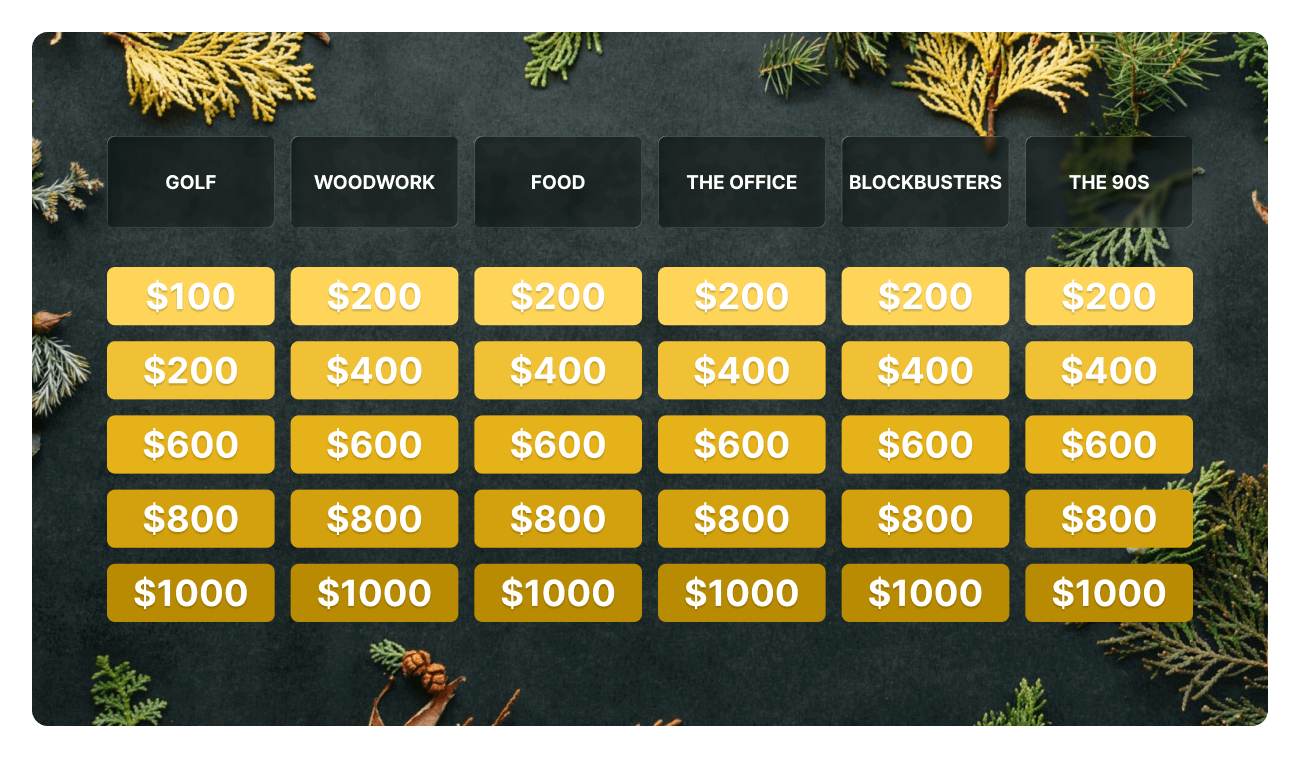
Start by designing a simple Jeopardy-style board in Google Slides or PowerPoint. A single slide works well with a grid and big clickable areas, as you can see in the image above.
- Columns = Categories
- Rows = Point values
- Each tile will link to its matching Slido poll
Step 2: Create an open text poll for every clue
For each question (“clue”), create one open text poll in Slido.
Why open text?
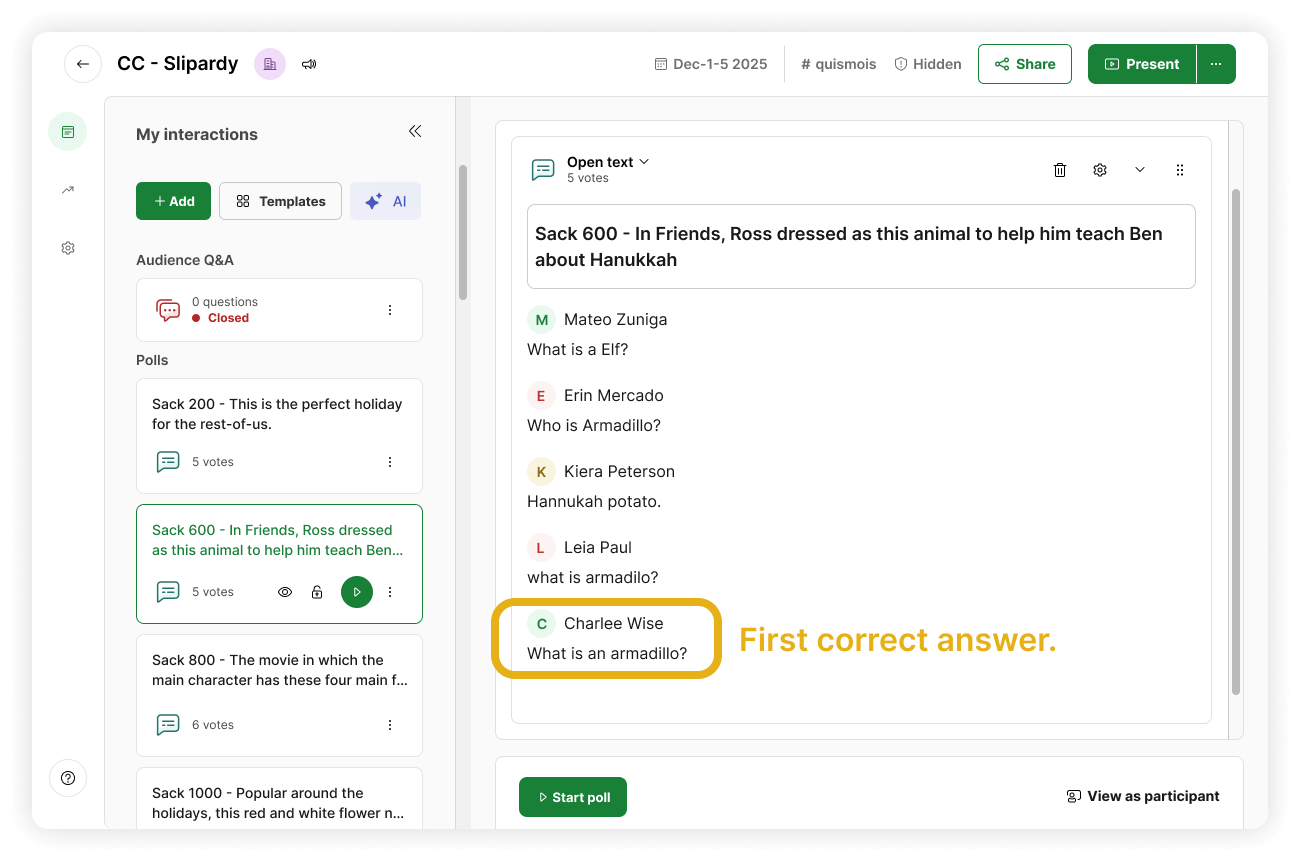
- It shows responses live in your host interface
- You immediately see who answered correctly first (the bottom-most answer)
- It keeps things exciting and competitive
- It works perfectly for “fastest answer wins” games
After creating all of your polls, drop them into your Google Slides or PowerPoint deck through the Slido integration.
Step 3: Link each board tile to its matching poll
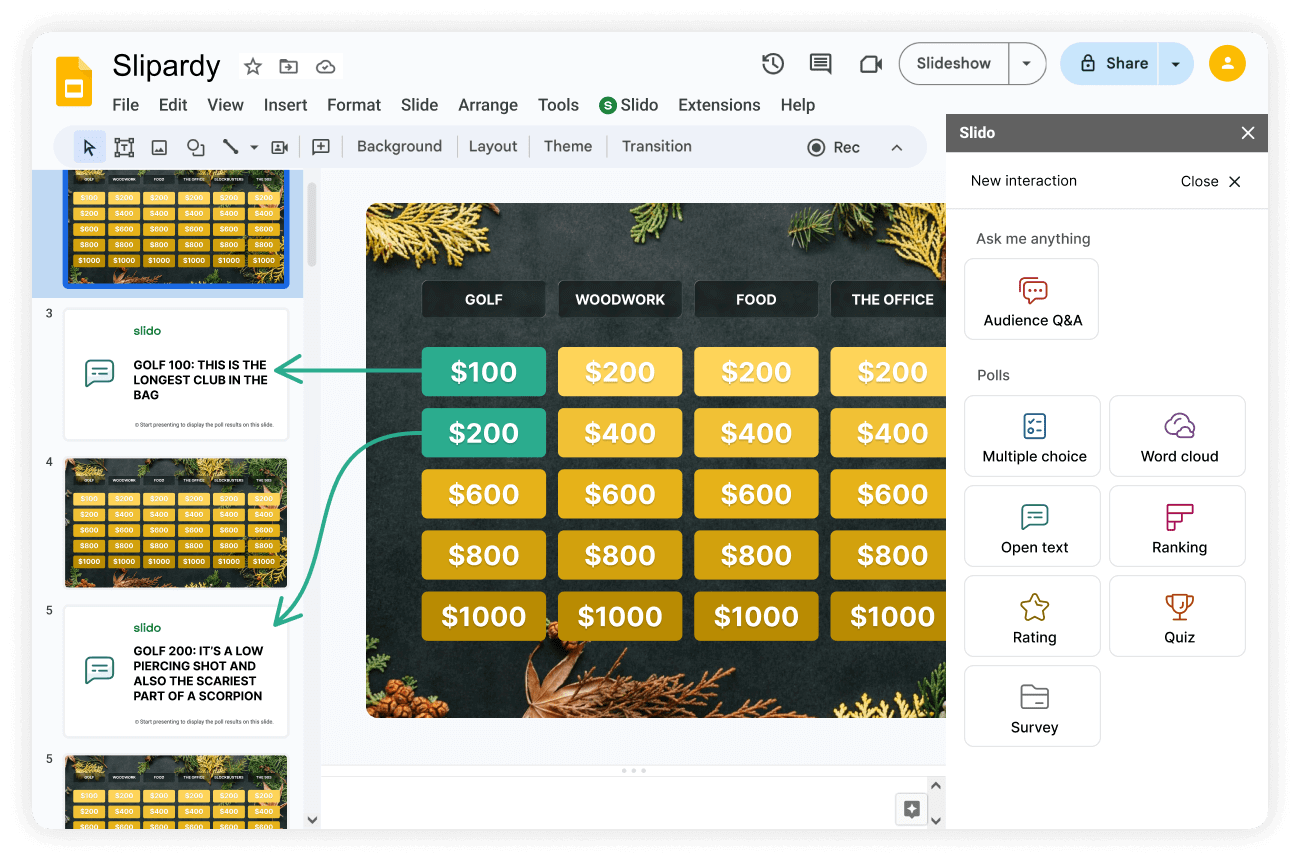
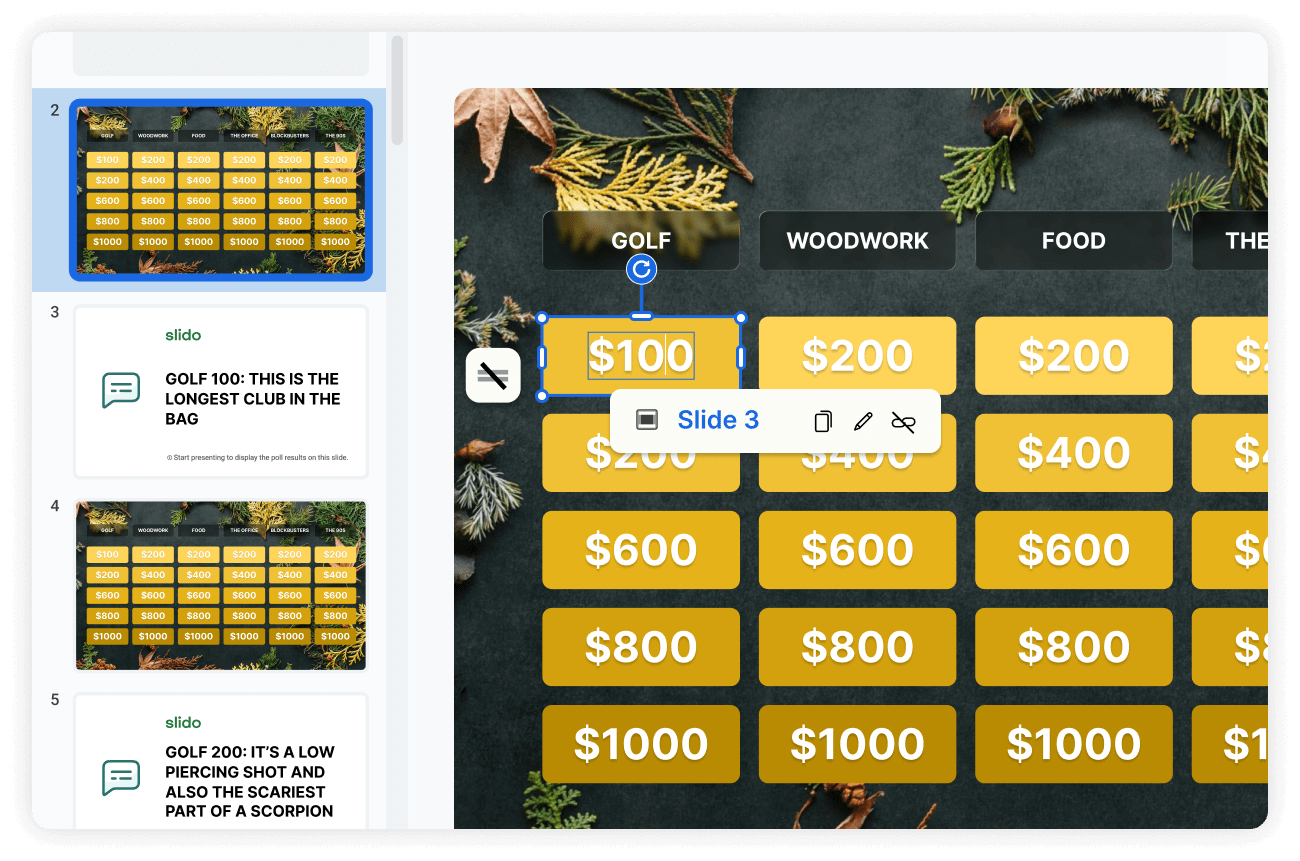
Google Slides or PowerPoint lets you hyperlink any shape or text directly to another slide:
- Insert all Slido polls into your deck
- Hyperlink each point value tile on the main board to the correct Slido poll slide
- Once you’ve linked all the text to the corresponding slides, duplicate the main board slide and place it after every poll, so you always return to the board
💡 Good to know: Google Slides and PowerPoint both automatically maintain the link targets even when slides move around.
This creates a smooth loop: Board → Poll → Back to Board.
Step 4: Running the game live
During the event you simply:
- Share your screen and present your deck
- Click the board tile that the players choose (this launches the Slido open text poll)
- Watch as answers roll in and as soon as you see the first correct one, reveal the results
- Award points manually
Step 5: Create a final round
Add a small “Final Round” or “End” button to your board and link it to one last open text poll, then:
- Players tell you their wager
- You click to reveal the final clue (open text poll)
- They type their answer in
Super simple, super effective.

What participants experience
If participating on their phones, contestants only see the active poll question and the text field to type the answer.
If you’re on a virtual meeting, it’s even more ideal to use our Slido for Webex, Zoom or Teams integrations, so no external device is required and participants can type their answers in the Slido sidebar.
You control the entire visual flow from your presentation and announce the leaderboard updates out loud. No tab switching for the audience, no extra setup, no confusion.
Final tips for success
- Use open text polls for real competition: It gives you speed, accuracy and the ability to crown whoever answered first
- Duplicate the game board slide generously: It makes navigation stress-free
- Keep questions short: You want people typing fast, not decoding long paragraphs
- Don’t overthink scoring: A simple notepad, tally or spreadsheet is enough
Ready to try it yourself?
The Jeopardy-style game in Slido turned out to be a hit. It was fast, loud, competitive and way more fun than a standard trivia round.
If you want to energize your next team event, try building your own version.