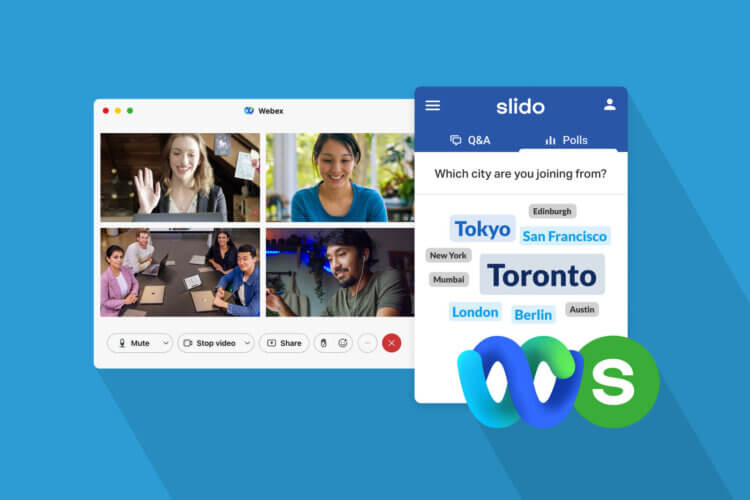
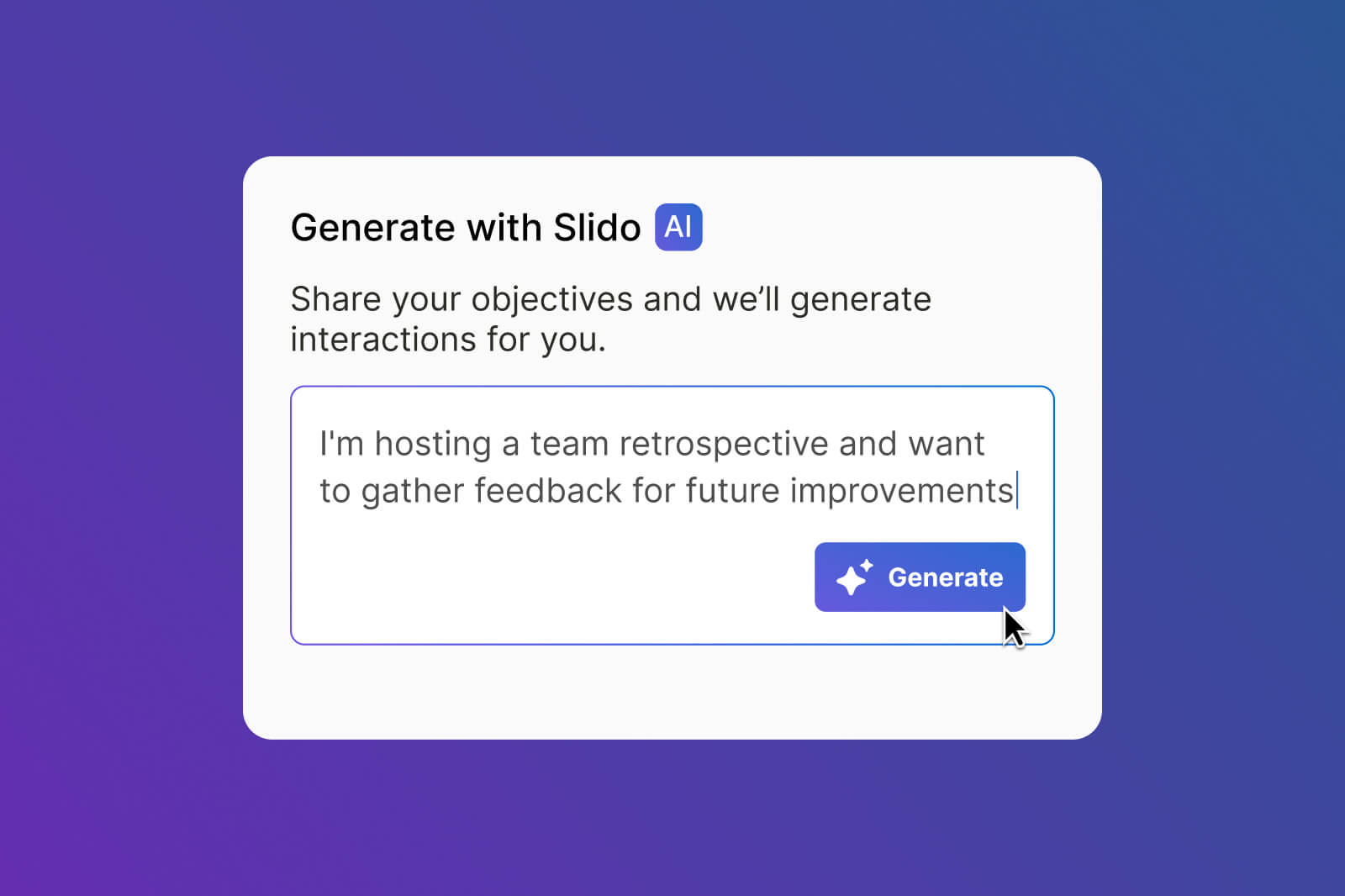
Sometimes you know you should think of an interaction for your next call or session, but your meeting is about to start and you’re completely out of ideas. Slido AI features can help you here, bringing you more ways to make meetings, trainings and live sessions interactive and productive – with less effort and time.
Create and refine interactions faster, let AI suggest meaningful moments for interaction directly from your slides and get more value from Q&A.
In this article, you’ll find valuable tips on how to leverage Slido AI and cut your meeting prep time while making your sessions even more engaging.
Let’s unpack what we cooked up for you.
#1: Make poll making easier with AI prompts and writing assistant
Coming up with great poll questions takes time, time that you don’t always have. With Slido AI, you can simply write a prompt about your next team meeting or training session, specify your goals, audience size or use case and Slido suggests a tailored set of interactions that fit your description. It’s a great help when you’re short on time and want to boost interaction in your session.
To use it, click the + Add interaction button in your slido, share the context for your meeting and select the polls you like. Want more options? Re-generate to get a fresh set of suggestions.
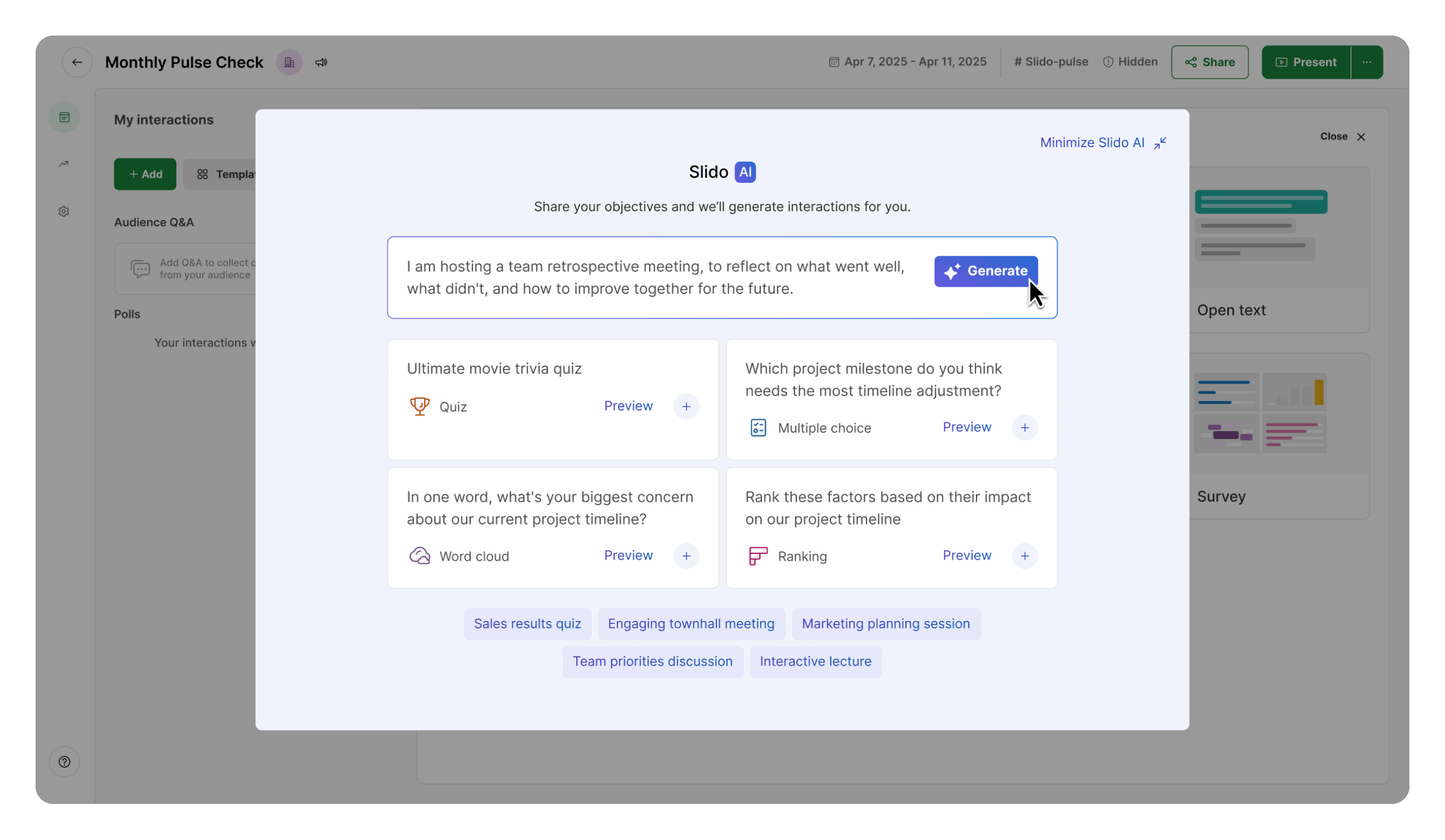
To improve your wording, you can take advantage of the Slido AI Writing Assistant, helping you create polls faster, with ease and without needing to check your wording elsewhere. Just click the star icon next to your poll question to make sure you avoid any typos and your question reads well.
For multiple-choice and ranking polls, let AI come up with answer options for you, so you don’t have to spend time thinking up and writing down the items yourself. You can use the suggested options as they are, or replace them with a fresh set.
#2: Run better Q&A sessions at all-hands, AMAs or town halls
In large sessions like town halls or all-hands, Q&A can quickly turn into a scramble: questions come in half-formed, duplicates pile up and the loudest voices get the most airtime. Slido AI helps on both sides of the experience, making it easier for participants to ask great questions and for hosts to run a clean, structured Q&A.
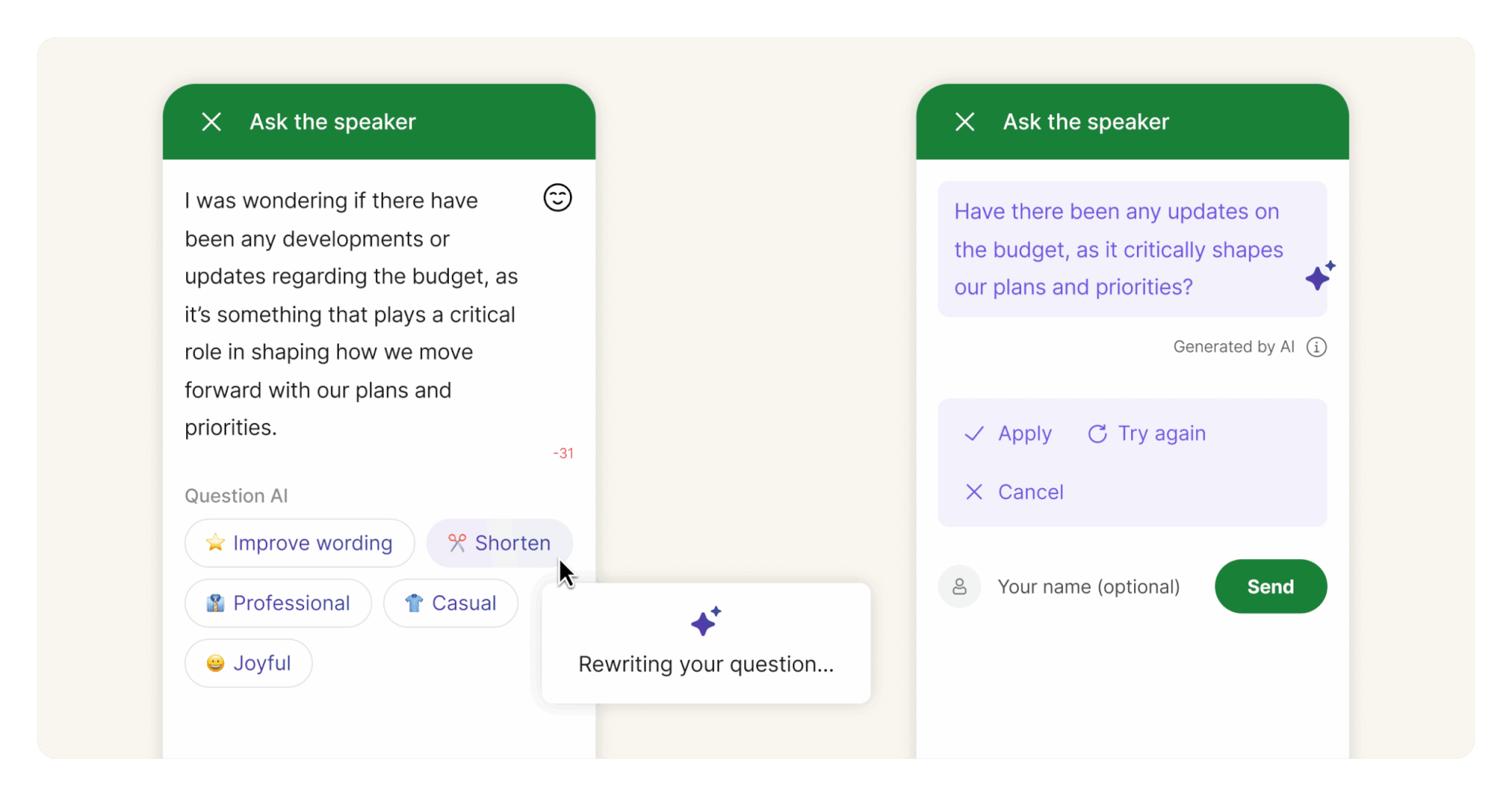
Writing a good question can take longer than it should, especially if they’re typing fast, aiming for a neutral tone or writing in a non-native language. Before hitting “Send”, participants can polish their questions with AI: shorten it, rephrase it, clean up grammar or adjust the tone. That turns “rough draft” questions into clearer, more answerable ones and helps people contribute with more confidence.
For large Q&A sessions with tens or hundreds of questions, Slido can cluster similar questions into topics, so you can spot repeats, group related themes and keep the Q&A flowing without jumping between disconnected questions.
As a host, you can also view question sentiment (positive / neutral / negative) in the Slido Analytics to understand what the general mood is. And if the AI gets the sentiment wrong, you can correct it so your analytics stay meaningful.
#3: Let Slido generate polls from your slides
If you’re using a slide deck in a meeting, training, or workshop, the tricky part of “making the presentation more engaging” is often knowing where to add the interaction as you don’t want to break the flow of your presentation with random polls.
This is where Slido can help by suggesting poll ideas that match each phase of your presentation, where it feels natural: a quick check-in at the start, a pulse check after a dense section, a reflection before you wrap up.
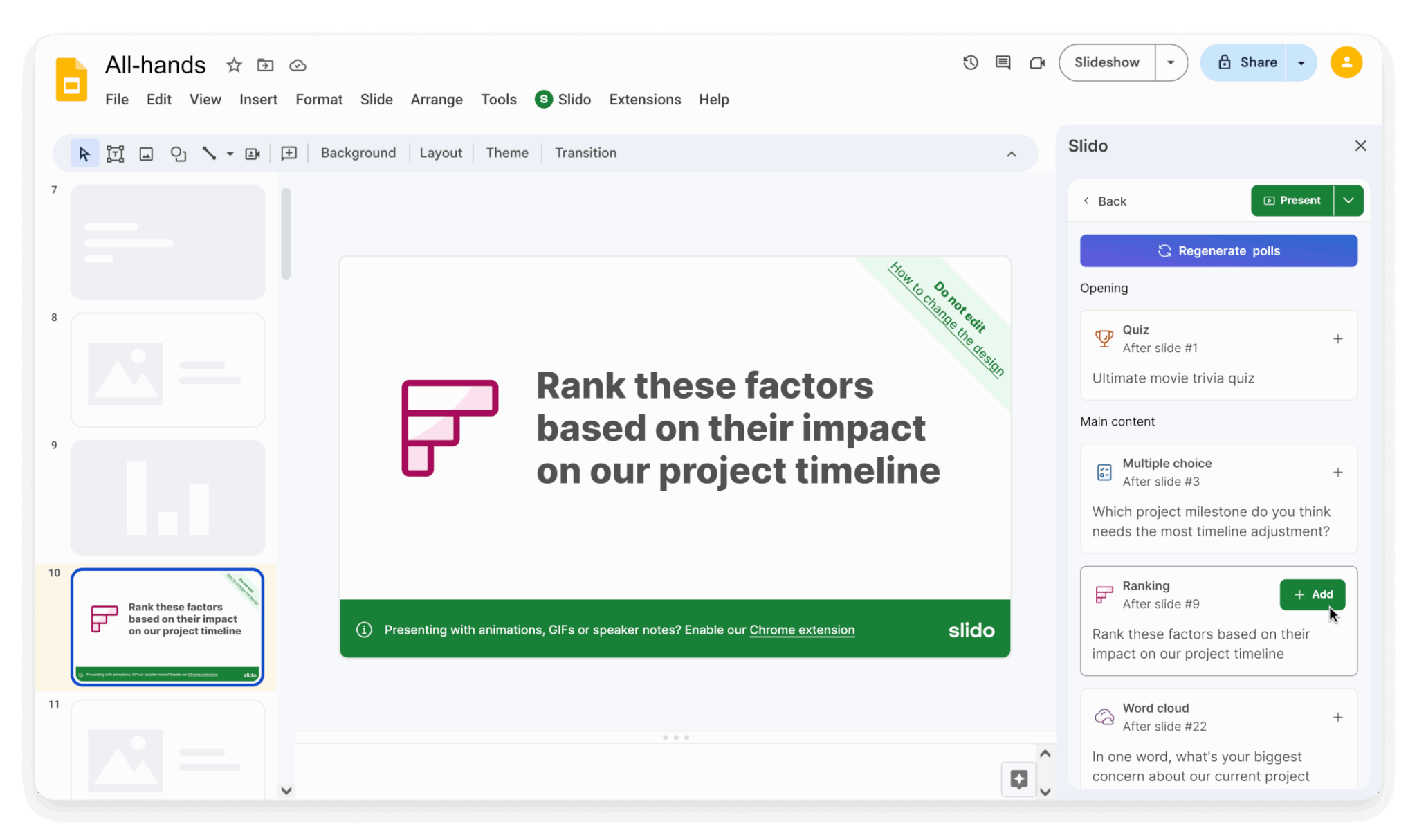
Once you’ve installed the Slido add-on for Google Slides in Chrome or the Slido for PowerPoint app, you can open Slido directly from your presentation. Click the ‘Slido’ button in Google Slides or PowerPoint to launch the Slido sidebar. From there, choose Generate polls from slides and Slido will suggest poll ideas tailored to the content of your presentation. From there, you simply pick the interactions that fit your style and your goal.
#4: Boost engagement and understanding with AI-generated quizzes
Quizzes come in handy whenever you want to wake the room up in a longer meeting or make sure key information sticks, for example in trainings, onboarding sessions or internal workshops. The challenge, of course, is coming up with good questions fast.
If you’re presenting in Google Slides or PowerPoint, you can generate quiz questions with AI right from your presentation.
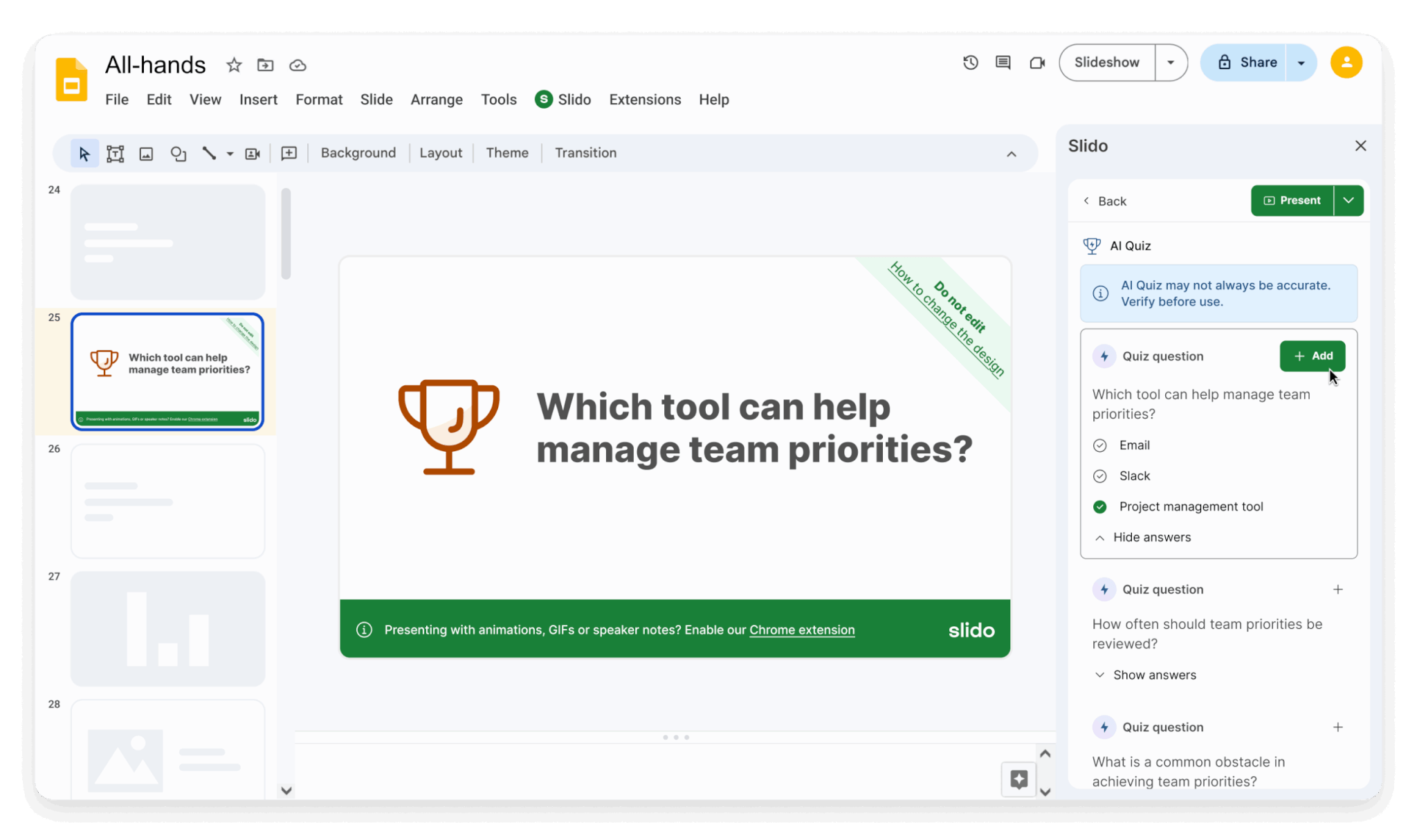
Just enter a topic and Slido will generate a quiz you can use as-is or tweak. It’s an easy way to keep people engaged and make your presentation stick without researching or typing your quiz from scratch. Ready to try it?
Try Slido AI in your next meeting
Slido AI features are enabled by default for most customers and can be managed under Organization settings → Generative AI. If you’re an admin or owner of an Enterprise plan, this is also where you enable AI features for your users.
Slido AI or templates?
Have you used our ready-to-go poll templates before? If so, keep using them; they’re still a great source of curated, tried-and-tested interaction ideas.
The difference between templates and Slido AI is that AI-generated interactions go beyond what’s pre-written. They help you create fresh polls tailored to your exact context and you can re-generate as many variations as you need until it feels right.
Better meetings, with less effort
Slido AI is built for anyone who hosts meetings, workshops, trainings or events, especially if you want higher engagement without spending more time preparing.
Use Slido AI to:
- Save time with tailored poll suggestions.
- Spark new interaction ideas.
- Write clearer questions and answer options.
- Run cleaner, more structured Q&As.
- Make open-text results easier to summarize and act on.
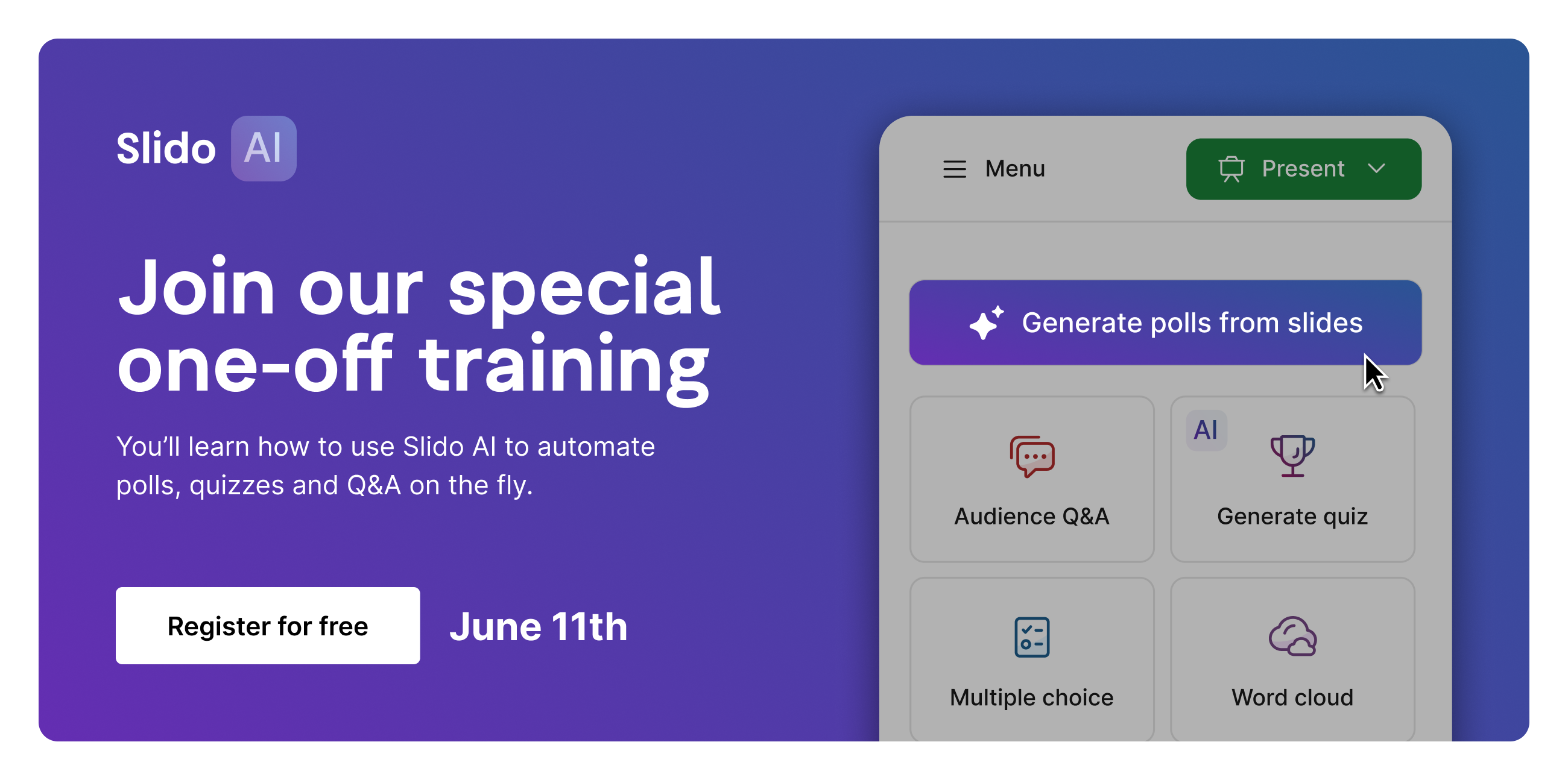
If you want hands-on guidance, the Slido Help Center and Slido Community has dedicated tutorials for these AI features and you can even join our special live training and learn how to make the most out of Slido AI features on June 11, 2026: Register for free here.